 Activity/Service
Types
Activity/Service
Types
Activity/Service
TypesThe Activity Type is a mandatory drop-down field found on the Activities screen used to identify a business event such as a meeting, a phone call, an email, or a mailing making it easy to track, plan and report on all business events and activities.
The Service Type is a mandatory drop-down found on the Service Order screen used to identify a business event that is initiated by a customer need for service such as maintenance, installation, or troubleshooting making it easy to track, plan and report customer service events.
To configure the Activity and Service Types:
1. From the Setup Main Menu,
in the Maintain Lookup Values Module
group, point to Activities and then select Activity Types to
display the Activity Types dialog.
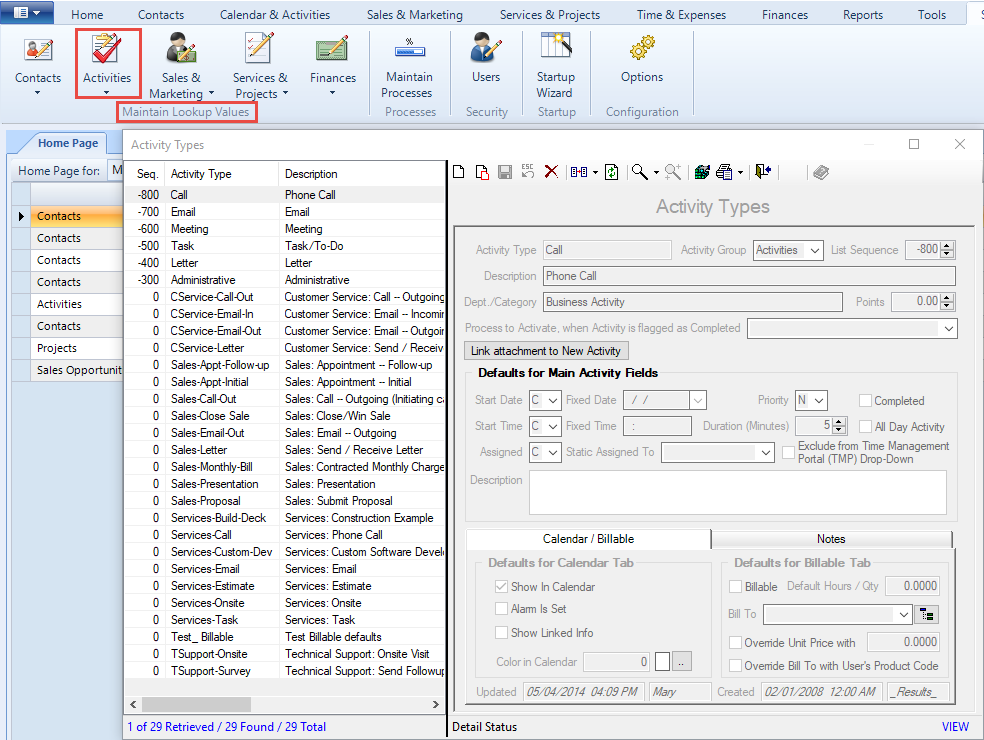
2. Complete the following fields:
● Activity Type – Up to twenty character code used when selecting from the drop-down list.
● Activity Group – Select “Activities” from the drop-down list if this code is intended to describe an activity and should appear in the Activity Type drop-down list; select “Service Orders” from the drop-down list if this code is intended to describe a service and should appear in the Service Type drop-down list.
● List Sequence – Allows the list to be sorted in any order. Default is alphabetical by code. List Sequence to override alpha listing by Activity Type (Zero = Alphabetical).
● Description – Used to further define the purpose of the Activity or Service order. This field stores multiple lines.
● Dept./Category – The business area for an activity record. For example, Sales, Customer Service or Technical.
● Points – Used to assign points to the task for purposes of calculating commission or tracking productivity.
● Process to Activate – Checks Completed for activities of this type and automatically triggers a business process.
● Link attachment to New Activity – Automatically attaches a specified document to activities of this type.
Defaults for Main Activity Fields
● Start Date – Select from the following options.
o Blank Date – Do not specify a date. This is useful for reminder type activities or Tasks.
o Current System date – Date when the activity is added or the Calendar time slot highlighted when the activity is added.
o Fixed Date – Any date that you specify. For example, this is useful for scheduling quarterly inspections.
● Fixed Date – The specified date if “Fixed Time (Specify)” is selected from the Start Date drop-down list.
● Priority – High, Normal, or Low.
● Completed – If checked, this Activity Type is defaults to complete.
● Start Time – Select from the following options.
o Blank Time – No default time specified.
o Current Time – Defaults to the time the activity is added or the selected Calendar time slot.
o Fixed Time – Defaults to the specified time. For example, this is useful for scheduling recurring activities.
● Fixed Time – The specified time if “Fixed Time (Specify)” is selected from the Start Time dropdown.
● Duration – The default number of minutes the activity lasts. Generates the Start Date and Time, as well as the End Date and Time.
● All Day Activity – Indicates an all-day activity overriding Start Time & Duration.
● Assigned
o Current User – Indicates that new activities are assigned to the user that is adding the activity.
o Fixed – Indicates that new activities are assigned to a specific user regardless of who adds them.
● Static Assigned To – The specified user for the “Fixed” assigned user.
● Description – Free form text to minimize retyping of common descriptions.
Defaults for Calendar/Billable Table
● Defaults for Calendar Tab
o Show in Calendar – Always display this Activity type in the calendar.
o Alarm is Set – Notify the assigned user that the activity is starting.
o Show Linked Info – Show linked contact, associated, attachment and project information in the calendar.
o Color in Calendar – Specify a color for the activity’s calendar entry.
● Defaults for Billable Tab
o Billable – Designate the activity as billable.
o Hours/Qty – Default hours or quantity to be billed.
o Bill To – Drop-Down with a list of Services from the Products table with items marked as Services and not marked as Discontinued. See the Bill Codes section for additional information. A Bill code is used to establish pricing and track available units when creating a billable activity that will eventually appear on an invoice.
o Override Unit Price – Option to override the price in Products table.
o Last Updated and Last Updated By – The date and time the record was last modified and the user who made the modification.
o Created and Created By – The date and time the record was created and the user who set up the record.
● Notes Tab
o Specify unlimited searchable notes as part of the activity defaults. This is useful for including a checklist of items in the activity, providing a list of questions to be answered and become part of the Activity record and/or for including detailed information on the invoice for billable activities.
3. Click the Save  icon to save your changes
or (Ctrl + S).
icon to save your changes
or (Ctrl + S).
ResultsCRM User Help (August 2018)
