 Contact Types
Contact TypesThe Contact Type is a mandatory drop-down field found on the top section of the Contacts data entry screen. It is used to identify a business entity such as prospect, customer, vendor, or employee making it easy to track and report entity specific information using customized fields and processes.
To configure the Contact Types:
1. From the Setup Main Menu,
in the Maintain Lookup Values Module
group, point to Contacts and then select Contact Types from
the drop-down list to display the
Contact Types dialog.
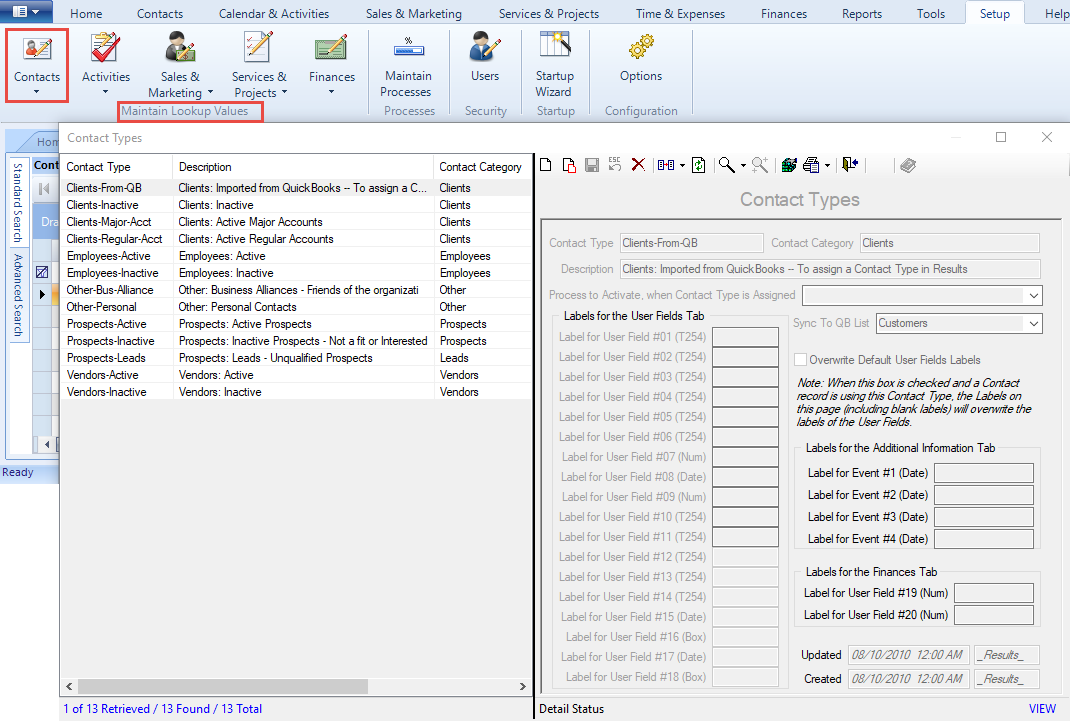
2. Complete the following fields:
● Contact Type – Five character code used when selecting from the drop-down list.
● Contact Category – User defined category for grouping in the drop-down list.
● Description – Used to further define the purpose of the Contact Type.
● Process to Activate – A drop-down list of named Processes to be activated when the Contact Type drop-down is changed for a Contact.
● Overwrite Default User Fields Labels – Check this box to overwrite the default labels for customizable fields on the User Fields, Add’l Info and Finances tab of the Contact data entry screen. Unless the box is checked, Results will ignore the labels on the Contact Types Maintenance form.
● Labels for User Fields Tab – If configured, these labels appear on the User Fields tab of the Contact screen
● Labels for the Additional Information Tab – If configured, these labels appear on the Add’l Info tab of the Contact screen.
● Labels for the Finances Tab – If configured, these labels appear on the Finances tab of the Contact screen.
3. Click the Save  icon to save your changes
or (Ctrl + S).
icon to save your changes
or (Ctrl + S).
ResultsCRM User Help (August 2018)
